
Greetings. As of 2026, please note we no longer accept handwritten case studies.
For the final Case Study submission, you will be required to combine all of your case studies into one document for your submission. One way to combine files together is to copy and paste or drag one-by-one, each case study into only one document; one after the other with no separation. It is like having a very long (60+ pages) file to send.
The current completion requirements checklist includes:
Case Studies – Complete and submit 25 in total: 5 in Level 2 and 20 in Level 3.
Participants must submit at least 25 Case Study Forms:
13 with external clients and 12 with CI participants, with no more than 5 case studies from any one client.
Submit typed in one Word document, with each case study starting on a new page.
Use initials only, not full names, to protect confidentiality.
Merging into one document:
If you have multiple images, documents or PDFs and would like to copy them all into one document, one method you can use is simply to create a new Word Document (or whichever text editor you use), open all of the documents you would like to copy, and one-by-one copy and paste into that new document. If this doesn’t work, see below:
For Mac, with Preview:
Here’s a video for how to combine multiple PDFs using Preview for Mac (a built-in program) – https://www.youtube.com/
And a support page from Apple – https://support.apple.com/
For Mac or Windows with Adobe Acrobat:
If you have Adobe Acrobat, here is a way to merge.
How to combine and merge your files into one PDF:
- Open Acrobat DC to combine files: Open the Tools tab and select “Combine files.”
- Add files: Click “Add Files” and select the files you want to include in your PDF. You can merge PDFs or a mix of PDF documents and other files.
- Arrange and delete content: Click, drag, and drop to reorder files or press “Delete” to remove any content you don’t want.
- Combine files: When you’re finished arranging, click “Combine Files”.
- Save as a PDF file: Name your file and click the “Save” button. That’s it.
Uploading as a single PDF is fine, it does not necessarily have to be a Word document.
As a last resort, you may upload all files in one combined Zip file if you cannot figure out a single document with the above steps.
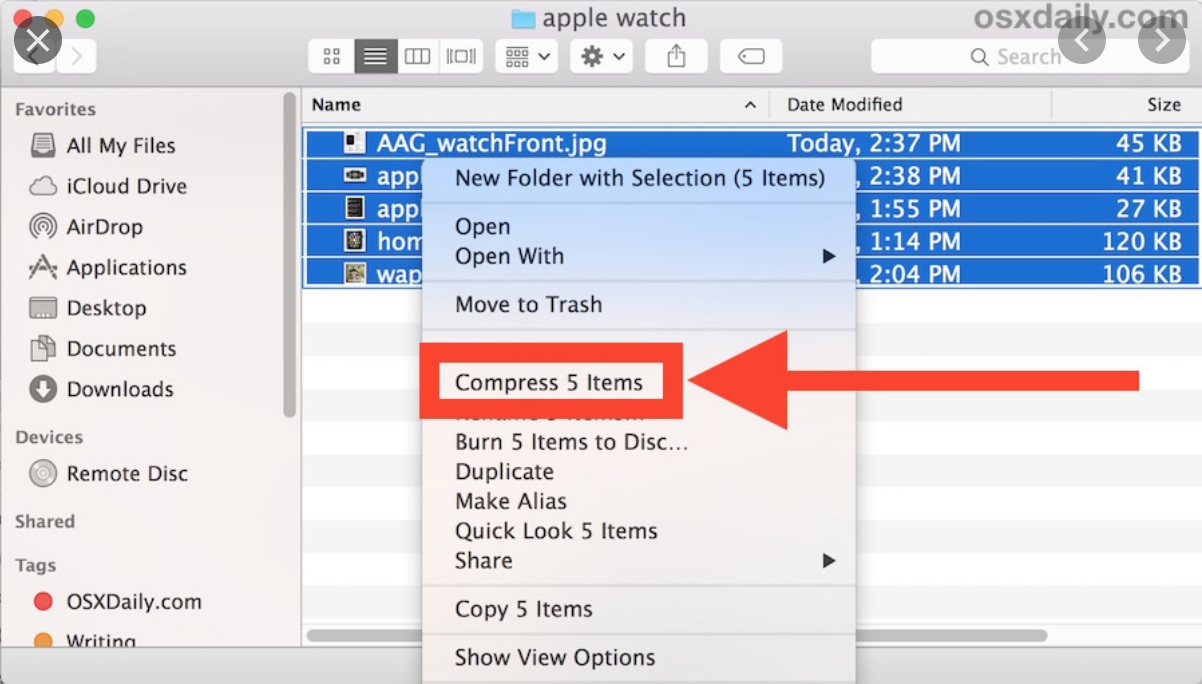
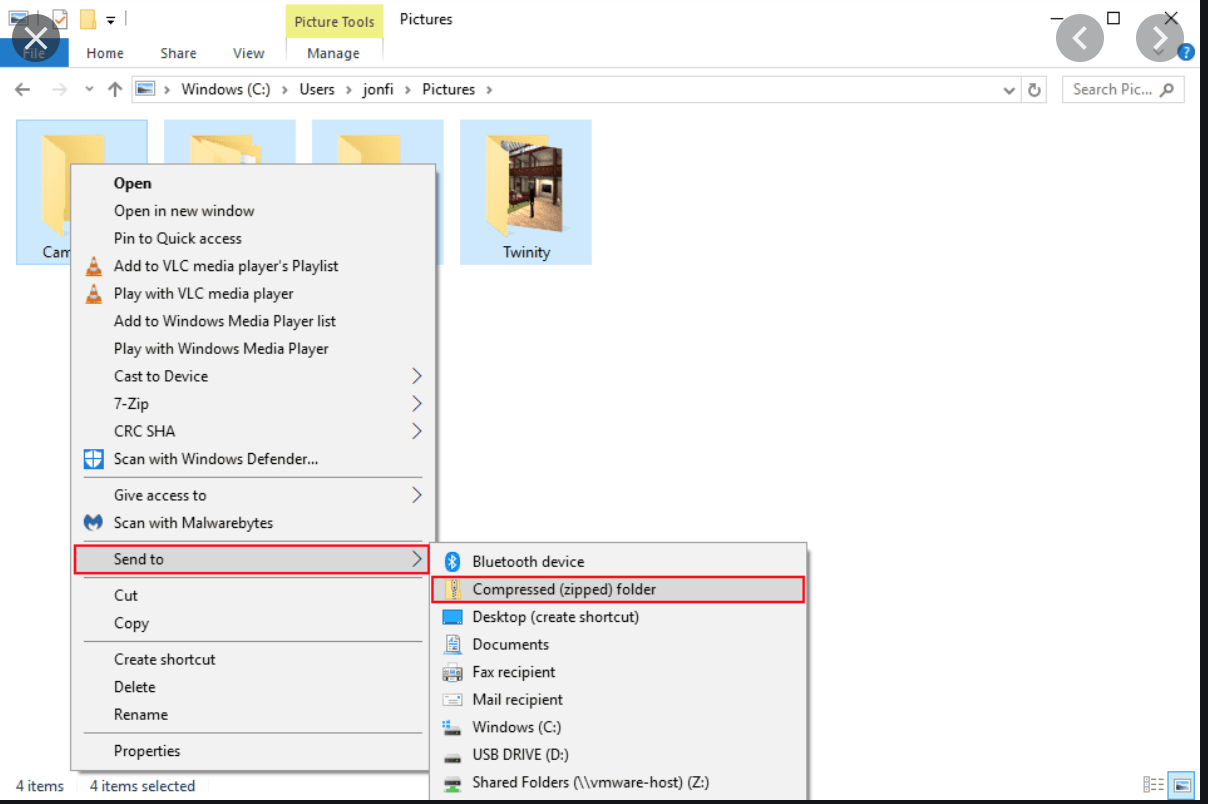
Here are instructions for Mac and for Windows to create a zip file:
- If you have a folder, Right Click on that folder so that a dialog appears (or control click – on a mac, Control-click is to Press and hold the Control key while you click an item).
- Then on mac, hit “Compress … items”, on Windows, go to Send To -> and hit Compressed.
- A new zip file will be made in the folder, which you can then upload.
If you have further questions that you are unable to resolve, you may email online@